A boarding pass is only useful on the day of the flight.
informationalscreenshot2,497 days old
Safe to delete
AI Photo Janitor · Junk Photo Cleaner
Each photo you select goes to a specially curated AI that tries to figure out why you took the photo, then assesses whether it should be kept or deleted. A boarding pass is expirable, a recipe should be kept indefinitely. The AI reads each photo once only to pass back its analysis, results are saved only on your iCloud.
Not on the App Store yet. The beta goes out in batches.
What review looks like
A boarding pass is only useful on the day of the flight.
Two people at a restaurant table, plates halfway through a meal
Recipes do not expire, so this one is your call.
The first row is a real find from the library that was tested: a boarding pass with a useful life of 1 day, still sitting in the camera roll 2,497 days later.
How it decides
Every photo is described first, in words, including any text read out of a screenshot. Only then does anything get judged, and the judgement is made against that description rather than against the pixels. It is unglamorous work, reading and sorting one photo at a time, and doing it properly is the whole product.
First: is it sentimental?
A person, a view, a meal. Something that was worth looking at rather than worth knowing. Sentimental photos are never queued for deletion at any age. A photo of your kid is worth more every year, and no amount of clever scoring should be allowed to argue otherwise.
Then: has it gone stale?
A screen, a document, a label. Informational photos carry a fact, and facts have shelf lives. The app puts a clock on the kind of photo it is, compares that against how old this one actually is, and only then has an opinion.
When it cannot tell
Ambiguity counts against a photo here rather than protecting it. If the app cannot make out what it is looking at, or cannot work out why it was taken, it says so, drops its confidence and puts a short clock on it anyway. Low confidence sends a photo to Review rather than the delete pile, so the ones it is least sure about are the ones you see.
| The photo | Useful for | Because |
|---|---|---|
| A parking-space photo | About four hours | You are back at the car by dinner. |
| A boarding pass | One day | The flight lands and the barcode is dead. |
| A receipt | Until the return window shuts | After that it is a picture of a piece of paper. |
| A recipe | Never expires | Informational, but still true next year. |
| A person, a view, a meal | Never expires | Sentimental. Never queued for deletion. |
Those shelf lives are the app's own judgement about the world, not measurements. They are the shape of its reasoning, and they are the thing you get to disagree with, which is why every verdict shows its argument instead of a score.
Measured on one real library
9,641
photos in the library that was measured
39%
of it more than five years old
20.3%
of it screenshots, by Apple's own PHAsset flag
5%
of it duplicates, the thing every competitor competes on
Only 7% of it was taken in the last year. The rest is sediment: screenshots of things that mattered for an afternoon, documents photographed instead of filed, codes that expired in thirty seconds. Sorting that by date, by file size or by how blurry it is does not touch the actual problem.
On a randomized 50-photo sample from that library the engine judged 50% deletable, 42% keep and 8% worth a human look. Split by origin, 69% of screenshots were deletable against 41% of camera photos. Screenshots are almost always informational, and information is the thing that goes off.
To be straight about what that is: one randomized 50-photo sample, from one library of 9,641 photos. It is not a benchmark, not a promise about your camera roll, and a sample that size carries real error bars. It is the number that was actually measured, so it is the number on the page. Duplicates, meanwhile, were 5%, and Apple's Photos app has found those for free since iOS 16, under Albums then Utilities.
From the app
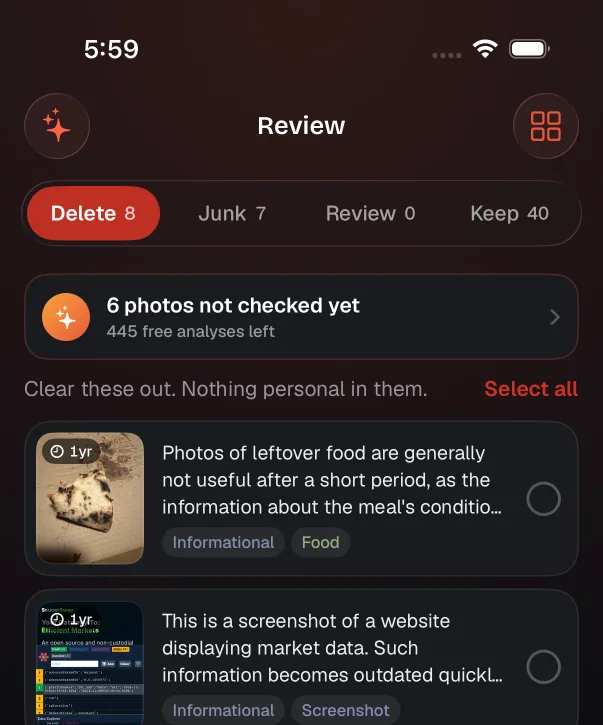
A screenshot of an active call is only useful for the duration of the call. A photo of a lock screen showing the time and weather is transient by definition. Each row leads with its reason, wears its age on the thumbnail, says what kind of photo it is, and waits for you to tick it.
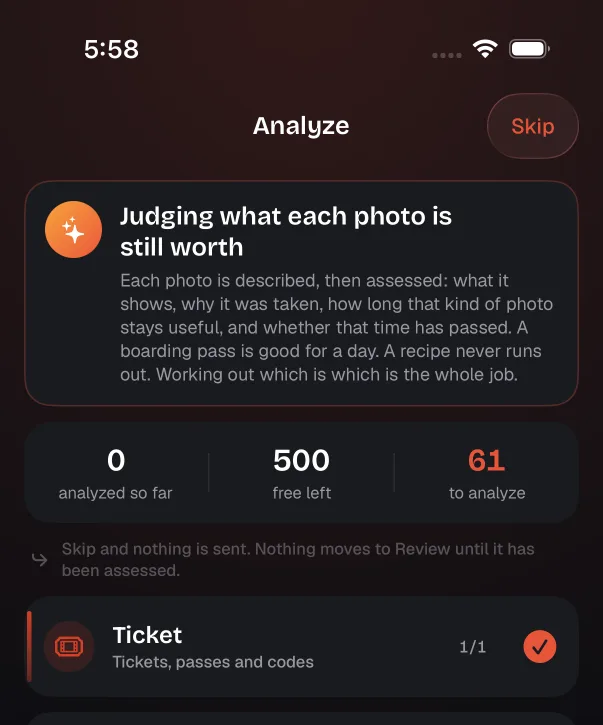
Photos are grouped into categories first (tickets, screenshots, receipts), and you untick anything you would rather keep to yourself. Skip, and nothing leaves the phone. Photos only reach Review once they have been assessed. Sensitive photos are automatically filtered out and will never be analyzed by the AI.
Why this one
Blurry, duplicated, oversized, screenshotted: those are all things you can spot without understanding a photo at all, which is exactly why every app competes on them. This one sends the photo to an AI and asks what it was for, then whether that purpose has run out. That buys two things no pixel check can do: it reads the date off a ticket and counts from that date, and it has an opinion about the photos you never consciously took.
The app reads the date out of the ticket itself rather than inferring one, and the countdown runs from that date instead of from the day you took the screenshot. A ticket for a flight you have not taken yet is never queued for deletion however old the photo is, and that check runs before every other rule in the app. Once the date has passed it waits longer still, by however much you choose: on the day, a week, a month, three months.
Every camera roll carries a layer nobody decided on: a badly framed picture of a wall, a blurry shot of a hand, an unidentifiable smear. Nothing is technically wrong with most of them, so a pixel check has no view either way. Here, not being able to tell what a photo is counts against it rather than protecting it. It gets a short clock and a low confidence, which sends it to Review rather than the delete pile, so you get a quick yes or no on the pile nobody ever sorts.
Each row leads with its reason in plain words: what the app thinks the photo is, and why that has or has not gone stale. You cannot argue with a number. You can argue with a sentence, and arguing with it is the point of showing it to you.
It selects, you confirm, and the removal goes through the standard iOS route, so Recently Deleted holds everything for 30 days exactly as it would if you had done it by hand. There is no path through this app that removes a photo you did not tick.
Before anything is sent
Judging a photo means reading it, and reading it means sending it out, through our API to Google’s Gemini, which writes the description each verdict is made from. Photos do leave the phone, so the question worth asking is what you are told before they go, and what gets stopped from going at all.
Before anything is sent anywhere, a pass runs entirely on the device using Apple's Vision framework. It sorts the whole library into categories and orders it by how likely something is to be junk, so what you are deciding to send is a considered list rather than forty thousand photos. Nothing has been judged yet at that point, and nothing has left the phone.
Photos are grouped by category first, and you choose what goes: a whole category, or one photo at a time. Anything you exclude stays excluded. The app does not quietly put it back in front of you on the next run.
Before the queue is built, a text-recognition pass runs on the phone across the photos that could plausibly be documents: screenshots, documents, receipts, tickets, notes, charts, and anything Vision could not put a name to. If it finds passport or licence markers, a payment-card number, routing or account numbers, or a password or verification-code phrase, that photo is flagged and held out of the queue. Two separate gates enforce it: selection never ticks a flagged photo, and the run filters the queue again in the moment before the network call.
Holding those back is on by default, and it is a switch you can see rather than a policy you have to take on faith. Each flagged photo says what set it off (“Looks like an ID or passport”), so you can check the app's reasoning and overrule it on the ones it read wrong.
It is a heuristic, and it does not catch everything. It only reads the photos that could plausibly be documents, so a passport lying on a table in a holiday photo is never examined at all. Handwriting, glare and unusual layouts defeat the text pass. Document types it has not been taught (an ID card from a country whose layout it does not know) read as a card with some words on it. It catches a known set of things and misses the rest, so it is not a guarantee. The list you approve before you tap Analyze is the control that is entirely yours.
What does go out is downscaled first, to 512 pixels on the long edge and 768 for screenshots. It travels over TLS and is not kept once the description comes back. The descriptions and verdicts are stored on your device and in your own iCloud, not on our servers. And Apple’s App Attest means the API will not answer anything but the genuine app. The privacy page has the rest of it.
Questions
By hand: open Photos, scroll to Media Types at the bottom of the Albums tab and pick Screenshots. iOS collects every screenshot there automatically. Tap Select, then drag across the grid to sweep up runs of them, and delete.
That album is the easy part. The hard part is that it is ordered by date rather than by whether a screenshot still means anything, so a receipt you still need sits three rows from a two-factor code that expired in thirty seconds. This app sorts that same album by whether the contents have gone stale, and shows you the sentence behind each call before anything moves.
Manually, the trick most people never find: in Photos, tap Select, then put a finger on the first photo and drag across and down. iOS selects everything the drag passes over, which is far quicker than tapping one at a time, and turning the phone sideways puts more of the grid under the same drag.
Two things catch people out. The count in the corner is the only confirmation you get, so a fast drag can sweep up a row you meant to keep. And everything you delete lands in Recently Deleted and keeps taking up space for 30 days unless you open that album and empty it.
The reason bulk selection feels risky is that you are deciding from thumbnails, at speed, with no idea what most of them are. The app's list leads each row with a sentence about what the photo is and why it might be finished, so a long run of ticks is a run of arguments you agreed with rather than a run of guesses.
That is the case it was built for. The app reads what is in the photo, works out what kind of thing it is, and compares how long that kind of thing stays useful against how old this one actually is. A receipt matters until the return window shuts. A boarding pass matters on the day of the flight.
In the library that was tested it turned up a screenshot of an American Airlines boarding pass that was 2,497 days old. Nothing about the pixels was wrong with it. It had simply stopped meaning anything, about six years and ten months earlier.
It also reads the date on the pass. A ticket for a flight you have not taken yet is never suggested for deletion, however long ago you screenshotted it. A gig ticket saved three months early is an old photo, but it is not junk. Once the date has passed, the app waits a while longer before suggesting it, and you choose how long: on the day, a week, a month or three months after.
Manually, search Photos for a word you know is in the image. Live Text indexes text inside screenshots, so "boarding pass" or a retailer name will surface some of them. It works, but only for the words you think to try.
Manually, the only reliable route is scrolling back to roughly when you parked and deleting on sight, because a photo of a parking level looks like any other photo of concrete to a search index.
It is a good example of why age alone is a bad signal. A parking-space photo is useful for about four hours and worthless afterwards, while a photo of your kid taken the same afternoon is worth more every year. Both are the same age. Only one of them should ever be suggested for deletion.
Sometimes less than you would hope, and that is worth being straight about. If iCloud Photos is on with Optimize iPhone Storage, the copies held on the device are already downsized, so removing them frees a fraction of what the full-resolution originals would suggest.
Deleted photos also move to Recently Deleted and sit there for 30 days before the storage comes back, unless you empty that album yourself. And on plenty of phones the largest consumer is not the photo library at all, so check Settings, then General, then iPhone Storage before assuming.
Cleaning up a photo library is worth doing because a library you can find things in is worth more than a full one. Treat any space you get back as a bonus.
Partly, already, for free: iOS Live Text reads text in your photos and screenshots, and the Photos search field will match some of it. Try that before you try anything else.
Because this app writes a description of every photo it analyses, including the text it reads out of screenshots, it can also search on things Photos tends to miss, the gist of an image rather than an exact string in it. It is a side effect of the analysis rather than a separate feature, which is why it is not the headline.
It does, but it is not the pitch. Duplicates were 5% of the library that was tested. Apple's own Photos app has shipped duplicate detection since iOS 16, under Albums then Utilities, free and already on your phone.
Every other photo cleaner competes on that slice. The interesting question is the rest of the library.
No. Nothing is removed until you review it and confirm. Every suggested deletion appears next to the photo with its reason in plain words, so you are agreeing with an argument rather than trusting a score.
When you do confirm, photos go to the standard iOS Recently Deleted album and stay recoverable there for 30 days. The app never bypasses that.
Not yet. It is pre-launch, and the beta is going out through TestFlight in batches. There is no App Store listing to link to, so this site does not pretend there is one.
It is not on the App Store yet, and this page is not going to pretend otherwise. If you want to be in an early batch, say so and you will be.
Ask for a TestFlight inviteNot on the App Store yet. The beta goes out in batches.